

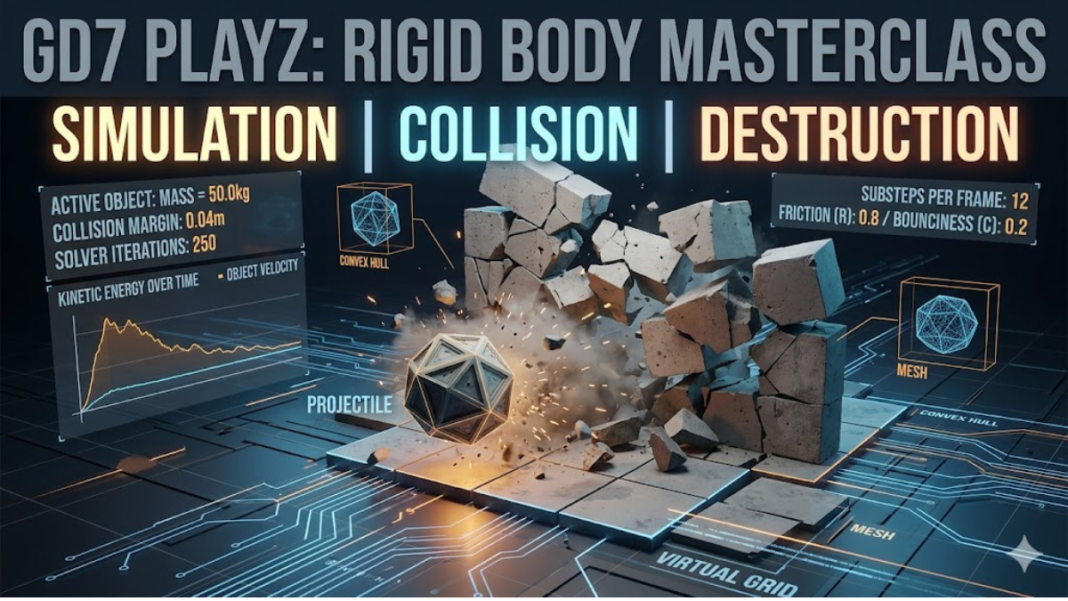

3D animation and digital physics simulations have transitioned from high-end Hollywood studio secrets directly into the hands of independent digital creators. Whether you are generating highly satisfying “destruction videos” for online audiences, developing a custom game environment, or crafting physics-defying visual effects, mastering object interactions is a vital skill.
When configuring a virtual environment, managing complex physics computations can quickly become overwhelming. Creators frequently encounter issues such as overlapping geometries, clipping meshes, or objects that seemingly explode into space without cause. Achieving realistic, stable, and highly satisfying motion requires a deep dive into advanced dynamic engines. A particularly valuable technical breakdown for solving these collision bugs and optimization challenges can be explored at gd7 playz.blogspot/2025/03/rbs.html, which functions as an excellent framework for configuring stable simulations.
also read:https://soutaipassu.com/mabinogi-lazy-patch/
This comprehensive guide breaks down the essential principles of mechanics within modern 3D software packages like Blender. We will examine how parameters like collision margins, mass distribution, and structural breakdown affect your final render, ensuring your digital assets behave naturally!
Understanding Rigid Body Systems in 3D Environments
A rigid body system tells your 3D software’s internal physics engine to treat a digital object as a solid, non-deformable entity. Unlike soft body dynamics—which mimic squishy, malleable materials like jelly or cloth—rigid structures maintain their shape regardless of the external forces applied to them.
When you apply physics to a 3D mesh, the software assigns a mathematical boundary around the object. The engine then tracks properties like velocity, angular momentum, and gravitational pull to calculate how these boundaries bounce off one another over time.
Active vs. Passive Simulation Elements
To build an effective simulation, you must categorize your 3D assets into two distinct functional types:
- Active Rigid Bodies: These meshes respond dynamically to gravity, wind, custom force fields, and impacts from other entities. A heavy concrete sphere falling through a glass ceiling is an active element.
- Passive Rigid Bodies: These entities remain fixed in space but still act as obstacles within the physical grid. Floors, walls, and immovable environmental obstacles are designated as passive so they can deflect active objects without falling downward naturally!
Technical Configuration: Tuning Your Physics Engine
The secret to a flawless render lies within the physics properties panel. Tiny adjustments to default variables can mean the difference between an immersive, photorealistic sequence and a broken, glitchy mess.
+-------------------------------------------------------------+
|                     3D PHYSICS ENGINE                       |
|                                                             |
|   Active Mesh (Mass, Velocity) ---> [ Collision Shape ]     |
|                                             |               |
|                                             v               |
|   Passive Obstacle <------------ [ Collision Margin ]       |
+-------------------------------------------------------------+
1. Shape Proxies and Collision Bounds
By default, calculating intersections across thousands of individual polygons slows processing times down to a crawl. To save memory, physics systems use simplified proxy shapes around your high-fidelity models.
Choosing a basic Box, Sphere, or Cylinder proxy forces the engine to calculate contacts based on simple primitive shapes rather than complex surface details. However, if you are working with irregular items, a Convex Hull creates a shrink-wrapped boundary that fits the outer shell perfectly. For complex structural objects containing interior hollows—such as an empty teacup or an archway—switching to a Mesh calculation ensures that moving elements pass through open spaces correctly as well!
2. The Power of Collision Margins
A collision margin acts as an invisible protective cushion surrounding your mesh. It prevents objects from clipping into one another before the engine registers a hit. If your margin is set too low, high-speed objects may pass straight through solid walls. Conversely, setting it too high makes your objects look like they are floating above the ground. Maintaining a minor, uniform boundary padding is essential for rendering clean contact points.
Step-by-Step Guide to Creating a Satisfying Destruction Simulation
To understand how these settings work together in practice, let us walk through the process of building a destruction sequence, where a heavy projectile crashes into a brick structure.
Phase 1: Mesh Preparation and Fracturing
Before initiating a physics run, your targets must be structurally prepared to break apart. A solid cube will not shatter on impact unless it contains pre-defined internal fracture lines.
- Select your primary target mesh within the viewport.
- Utilize a cell-fracture add-on or a localized voronoi shattering tool to split the single mesh into individual shards.
- Adjust the noise and crack variations to give the fragments organic, jagged edges that look realistic when shattered.
Phase 2: Applying Physics Parameters
Once your mesh is broken into multiple independent pieces, you must assign dynamic qualities to them simultaneously.
- Select all the newly generated shards, group them, and assign them as Active Rigid Bodies.
- Use the “Copy from Active” function to copy your physics configurations across every single chunk instantly.
- Introduce an environmental floor element beneath the setup, configuring it as a Passive Rigid Body to capture falling debris.
Phase 3: Projectile Setting Adjustment
The incoming projectile requires significantly more kinetic energy to break through the structural resistance of your fractured object.
- Incorporate a dense primitive sphere into your scene, placing it slightly above or to the side of your target structure.
- Increase its mass significantly relative to the individual wall shards.
- Animate the initial velocity or apply an external force vector to launch the sphere directly into your structural setup.
Core Parameter Comparison Matrix
Balancing parameters across multiple assets requires a structured approach. The following reference table outlines how key settings dictate object behaviors within the 3D grid:
| Parameter Name | Target Values | Visual Effect on Asset | Common Troubleshooting Fix |
| Mass (Weight) | 0.1 kg – 500+ kg | Controls how much momentum an asset carries and how easily it displaces lighter objects upon impact. | If objects feel floaty, increase mass values; if they drop like lead anchors, reduce them. |
| Friction | 0.0 (Slick) – 1.0 (Rough) | Dictates the surface resistance when two objects slide past one another. | Increase this value if your structural blocks are slipping out of place before an impact occurs. |
| Bounciness (Restitution) | 0.0 (Dead) – 1.0 (Elastic) | Determines the amount of kinetic energy retained after a collision. | Lower this to zero for heavy stone blocks to keep them from bouncing like rubber balls. |
| Linear Damping | 0.0 – 0.99 | Simulates air resistance, gradually slowing down an object’s forward movement. | Raise this slightly if exploding shards fly away too quickly from the epicenter. |
Advanced Troubleshooting for Unstable Simulations
Even with precise settings, simulations can sometimes behave erratically. If your meshes shake, twitch, or pass through floors, try implementing these advanced troubleshooting techniques:
Eliminating Viewport Shaking and Jitter
Jittering happens when the physics engine struggles to find a resting position for resting objects. If two meshes overlap slightly at the start of a frame, the solver pushes them apart forcefully, only for gravity to slam them back down on the next frame. To fix this constant shaking, navigate to your scene’s global physics panel and increase the Solver Iterations. Forcing the engine to run more calculation passes per frame directly cleans up positioning errors before they appear on screen.
Resolving High-Speed Clipping Bugs
When objects move faster than the software can calculate, they can skip past structural boundaries entirely between frames. To counter this, increase your scene’s Steps Per Frame (Substeps). This forces the engine to split each frame into smaller chronological slices, tracking the moving object’s path much more frequently.
Additionally, optimizing your setup using the workflows outlined at gd7 playz.blogspot/2025/03/rbs.html ensures that your system handles these demanding background calculations efficiently, keeping your viewport running smoothly as well!
Frequently Asked Questions
Why do my fractured objects explode before anything hits them?
This usually happens because the individual fractured pieces are overlapping slightly at the start of the simulation. The engine interprets this overlap as an intense collision and violently forces the pieces apart. To resolve this, slightly scale down the individual shards or enable a small, manual deactivation limit until a true impact occurs.
How do I animate an object before turning it into a physics object?
Enable the Animated checkbox within your rigid body settings. This allows you to hand-animate the asset using traditional keyframes. When you want the physics engine to take over, simply keyframe the “Animated” property to turn off at that exact moment.
What is the difference between Mesh and Convex Hull collision shapes?
A Convex Hull behaves like an elastic band wrapped tightly around your object, ignore deep hollows or indentations. A Mesh shape follows the exact polygon geometry of your asset, allowing other objects to enter hollow spaces, though it demands more processing power.
Why does changing my object’s scale break its physics behavior?
Physics calculations rely heavily on world-scale dimensions. If you rescale an asset in the viewport without applying those changes, the engine calculates physics based on its original dimensions. Always remember to clear and apply your object transformations (Ctrl + A in Blender) to match its physical scale.
Can I link rigid body objects together structurally?
Yes, you can connect independent assets using Rigid Body Constraints. These act like virtual hinges, springs, or fixed joints, allowing you to create complex mechanical assemblies like swinging chains, doors, or ragdoll figures.
How do I prevent small debris from rolling forever?
You can stop endless rolling by increasing the Angular Damping value on your smaller debris shards. This simulates rotational friction, slowing down spinning objects over time so they settle into a natural resting position.
Why do my objects fall in slow motion?
Slow-motion falling usually means your scene scale is set incorrectly. If your objects are modeled to be hundreds of meters tall, they will appear to fall slowly due to the vast distances involved. Ensure your assets match real-world measurements for accurate gravity behavior.
Is it possible to bake a simulation into keyframes?
Yes, you can bake your finished physics runs down into standard animation keyframes. This locks the motion in place, allowing you to manually tweak individual frames, export the file to external game engines, or render safely without re-calculating the physics every time.
How do force fields interact with rigid body systems?
Force fields—like wind, turbulence, and vortex nodes—apply external directional vectors directly to active rigid bodies. The strength of the effect depends on the mass of your objects, meaning lighter shards will be swept away much faster than heavy blocks.
What causes a passive floor object to drop out of a scene?
If a passive object falls when you press play, it is likely misconfigured as an active rigid body type. Double-check your settings and ensure its type is set to Passive and that the “Animated” toggle is disabled unless you are moving the floor manually.
Conclusion
Mastering advanced rigid body systems requires a solid understanding of mesh preparation, precise collision boundaries, and fine-tuned engine settings. By using primitive shape proxies, adjusting your collision margins carefully, and increasing solver iterations when needed, you can eliminate common glitching bugs and capture highly realistic motion.
Be sure to review foundational optimization guides like the ones hosted at gd7 playz.blogspot/2025/03/rbs.html to fine-tune your workflow. With these technical practices in place, your 3D assets will interact convincingly and behave naturally, allowing you to produce professional-grade simulations for your creative projects.